This user guide is designed to help you navigate and make the most out of the Opened/Clicked/Bounced/Unsubscribed chart feature within your marketing software. This feature offers a detailed and interactive way to understand the performance of your email campaigns directly from the chart.
Accessing Detailed Email Interaction Data
- Navigate to the Mailchimp Campaigns , select the Campaign you are interested in by clicking the arrow down, and click View Report Details.

- The campaign report includes the following information:

- Opens - The total number of times recipients opened the email. Percentage is calculated based on unique opens versus total number of successful deliveries.
- Clicks - The number of total and unique clicks for tracked links in the email. Percentage is calculated based on unique clicks versus total number of successful deliveries.
- Bounces - The total number and percentage of soft and hard bounces.
- Unsubscribed -The number and percentage of recipients who opted out using the unsubscribe link
- Forwarded - The number and percentage of times the email was forwarded using the Forward to a Friend form. This stat considers forwards only through the Forward to a Friend form and is not able to detect when a recipient uses the forwarding function in their email program.
- Abuse reports - The number and percentage of recipients who reported your email as spam. Contacts who report an email as spam are automatically unsubscribed from your emails.
- Total Sent - The total number of emails sent, including bounced and unsubscribed.
The report card also displays engagement rate metrics, so you can assess campaign performance at a glance:
- Open Rate - The percentage of recipients who opened the email.
- Click Rate - The percentage of recipients who clicked a tracked link.
- Bounce Rate - The percentage of recipients who registered as a hard or soft bounce.
- Unsubscribe Rate - The percentage of recipients who opted out using the unsubscribe link.
- Deliverability - The percentage of successfully delivered emails.
Note: Open Rate, Click Rate, Deliverability, and Unsubscribe Rate exclude bounced recipients from their calculation base, since bounced recipients could never open, click, or unsubscribe. Bounce Rate is calculated against the total number of recipients.
.jpeg)
3. Each number on the chart is interactive. Simply click on any of the segments representing Opened, Clicked, Bounced, or Unsubscribed emails to delve deeper into specific data. You can also click the Opens, Clicks, Bounces, or Unsubscribed rows directly in the metrics table to open the same recipient list — useful when a metric is too small to click on the chart:
- Opened - Recipients who opened this email any number of times
- Clicked - Recipients who clicked any tracked link any number of times in this email
- Bounced - Recipients who registered as a hard or soft bounce.
- Unsubscribed - Recipients who opted out of your emails using the unsubscribe link in this email.
Understanding Chart Details
Upon clicking a chart segment, you will see:
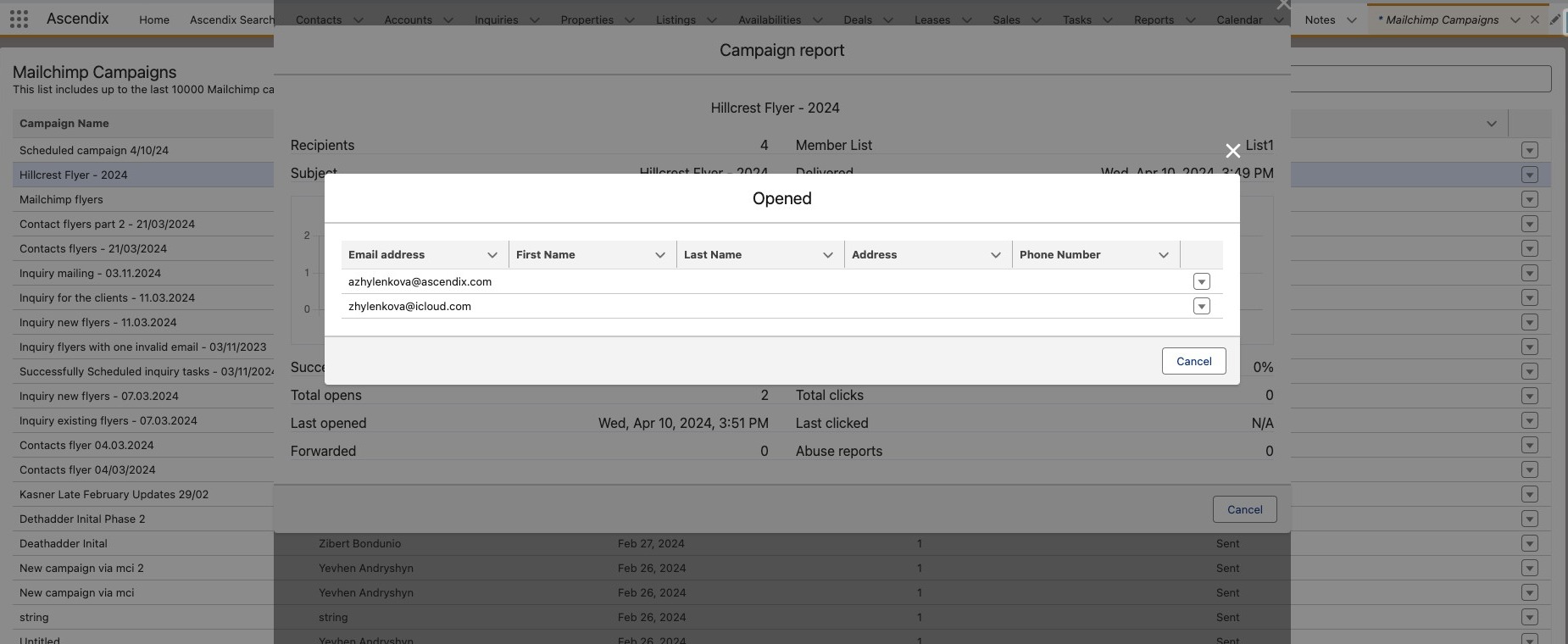
a) Title: The title changes based on the state you've clicked on (e.g., "Opened", "Clicked", "Bounced", "Unsubscribed"). This helps you identify the specific data set you are viewing.
b) Table Content: A detailed table will appear, showing:
- Email: The email address of the contact.
- First Name: Pulled from your Mailchimp account, if available.
- Last Name: Also taken from Mailchimp, if present.
- Address: The contact's address, sourced from Mailchimp when available.
- Phone: Contact phone number, if it exists in your Mailchimp account.
Next to each entry in the table, you will notice an arrow down icon. Clicking this icon reveals the option to View Email Details.
When you select View Email Details, a new page within the Global Search feature will open. This page presents all records related to the selected email, offering a comprehensive view of the contact's interactions and activities connected to your email campaigns.